
If you are planning to upgrade your PC, you are likely wondering: how long does it take to install Windows 11? In 2026, as operating systems become more feature-rich and security-focused, understanding the installation timeline is crucial for planning your day. Whether you are performing a clean install or an in-place upgrade, knowing what to expect can save you from unnecessary stress.
Generally, the process can take anywhere from 15 minutes to over an hour. This variance depends heavily on your hardware specifications, your internet connection speed, and the method of installation you choose.
Factors Influencing Windows 11 Installation Speed
Not all PCs are created equal. The time it takes to transition to the latest Microsoft OS is dictated by several technical variables.
1. Storage Drive Type (SSD vs. HDD)
The single biggest factor in installation speed is your storage drive. If you are running Windows 11 on an NVMe SSD, you will see significantly faster read/write speeds, often completing the installation in 15 to 30 minutes. Conversely, older mechanical hard drives (HDD) can drag the process out to an hour or more due to their slower data processing capabilities.
2. Internet Bandwidth
Before the actual installation begins, Windows must download the necessary files. Depending on your ISP, this phase can take anywhere from 15 to 60 minutes. If you have a gigabit connection, you might not even notice the download time, but on slower or unstable connections, this can become the primary bottleneck.
3. Upgrade vs. Clean Install
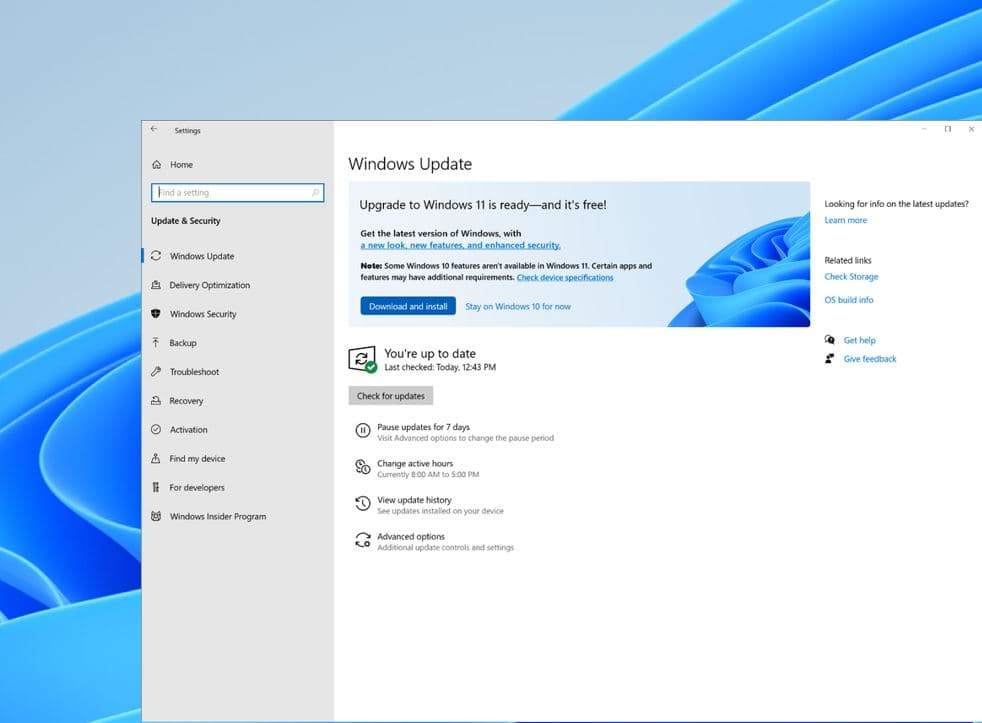
- In-place Upgrade: Moving from Windows 10 to Windows 11 while keeping your files typically takes 30 to 60 minutes. The system has to migrate your existing data, settings, and installed applications.
- Clean Installation: Wiping your drive and starting fresh is often faster, usually clocking in at 15 to 30 minutes. Since there is no legacy data to migrate, the installer focuses solely on deploying the OS.
Expected Timelines by Installation Method
To help you manage your expectations, here is a breakdown of how long you should set aside for each common scenario.
Upgrading via Windows Update
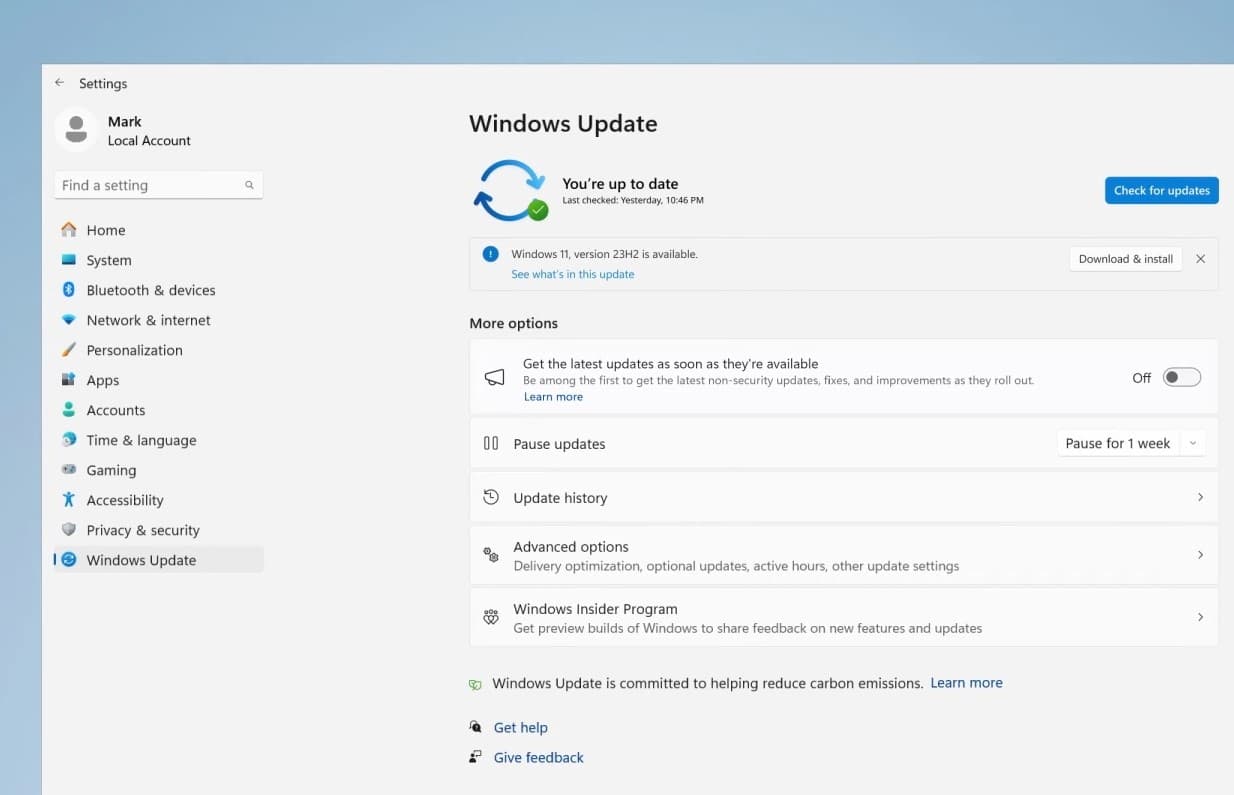
If you are using the built-in Windows Update service, the OS downloads in the background while you continue working. Once the download is complete, the actual installation phase—where your PC restarts and displays the “Working on updates” screen—usually takes 30 to 45 minutes.
Creating Bootable Media (USB)
Using the Media Creation Tool to install from a USB drive is a popular choice for power users. While this requires manual effort to prepare the drive, the installation itself is often more streamlined. Expect the process to take approximately 20 minutes on a modern system with a fast USB 3.0 or 3.1 drive.
How to Speed Up Your Windows 11 Installation
Nobody wants to stare at a progress bar for hours. If you want to ensure your installation goes as smoothly and quickly as possible, follow these professional tips:
- Use a Wired Ethernet Connection: Wi-Fi can fluctuate, causing download interruptions. A stable Ethernet cable ensures the maximum possible download speed.
- Free Up Disk Space: Before starting, delete temporary files and uninstall unnecessary software. A cluttered drive can slow down the partition verification process.
- Disable Non-Essential Background Apps: Close resource-heavy applications before starting the upgrade to ensure the CPU can dedicate its power to the installation.
- Ensure Proper Power: If you are on a laptop, always keep it plugged into a power source. An unexpected shutdown during the installation could corrupt your system files.
What to Do If the Installation Gets Stuck
Occasionally, the progress bar might seem to hang. Before panicking, observe these rules:
- Be Patient: Sometimes the installer is performing background tasks that don’t update the progress percentage immediately. Wait at least 60 to 90 minutes before assuming it is frozen.
- Check for Disk Activity: Look at your PC’s LED indicator light. If it is blinking, the system is still working.
- The “Force Restart” Last Resort: If the screen has been unresponsive for several hours, you may need to perform a hard reboot. However, only do this if you have no other choice, as it carries a risk of installation failure.
Conclusion
Knowing how long it takes to install Windows 11 in 2026 allows you to schedule the update during a period where your computer isn’t required for critical tasks. For most modern machines, you should be up and running in under an hour.
By preparing your hardware, ensuring a stable internet connection, and choosing the right installation method, you can minimize downtime and enjoy the sleek, new interface of Windows 11 without the frustration of a prolonged setup.