
If your smartphone has started acting sluggish, crashing frequently, or you are preparing to sell it, a factory reset is the ultimate “fresh start.” But if you’re staring at the progress bar, you might be wondering: How long does it take to reset an Android phone?
In 2026, Android devices have become more powerful, but they also hold significantly more data and complex encryption, which impacts the reset process. Generally, you can expect a factory reset to take anywhere from 10 minutes to over an hour. This variation depends on your specific device, the amount of data stored, and the method of erasure you choose.
Factors That Influence Android Reset Time
Not all factory resets are created equal. Several technical variables dictate the speed of the process. Understanding these can help you manage your expectations before you start.
- Storage Capacity and Usage: The more data you have on your phone, the longer it takes for the system to purge those files. A phone with 512GB of data will naturally take longer to wipe than a device with 64GB.
- Encryption Standards: Modern Android phones (Android 15 and beyond in 2026) use robust file-based encryption. When you initiate a reset, the system destroys the encryption keys, which is fast, but the subsequent re-partitioning and system file restoration take time.
- Device Age and Hardware: An older processor or slower flash storage (UFS 2.1 vs. the newer UFS 4.0+) will significantly impact how quickly the phone can perform read/write operations during the reset.
- Battery Level and Thermal Throttling: If your phone is running hot or has low battery, the system may throttle performance to prevent damage, causing the reset to drag on.
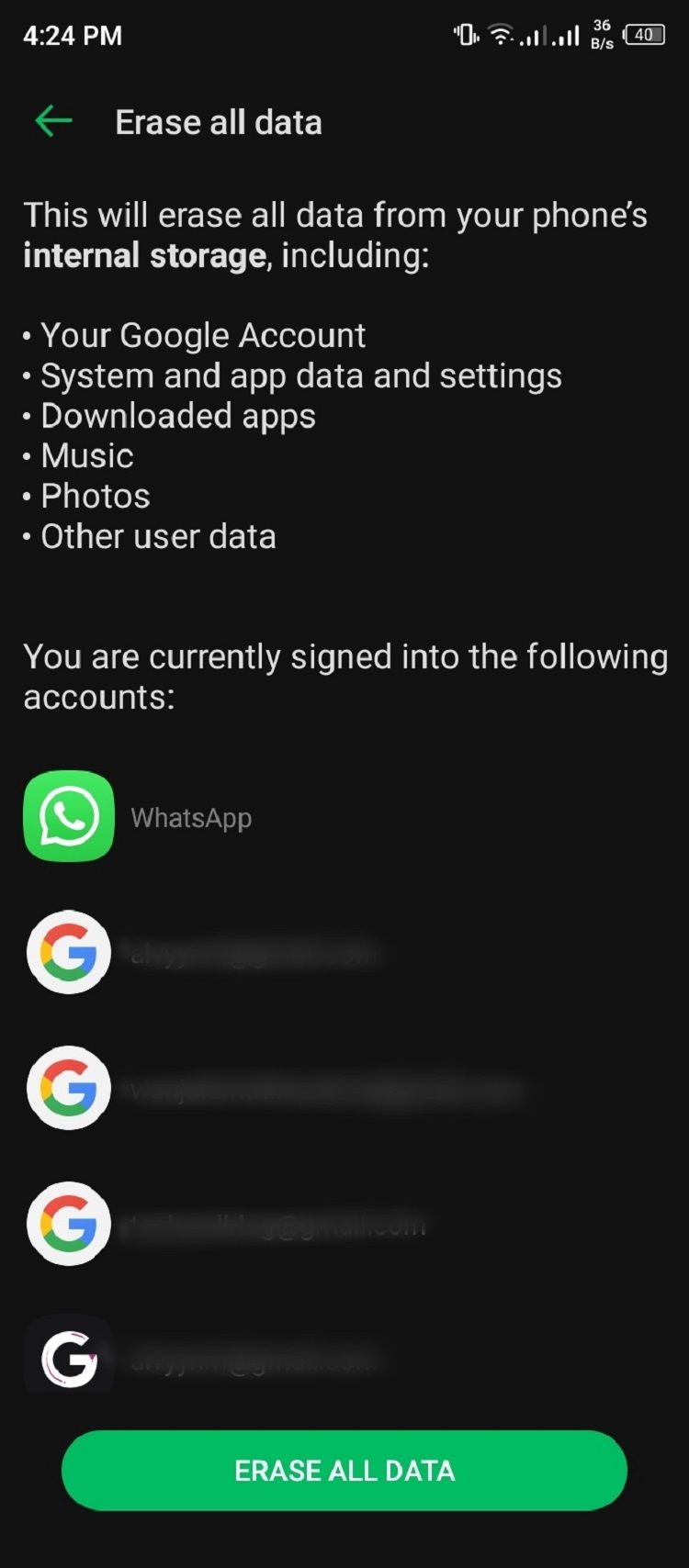
Typical Reset Timeframes: What to Expect
While every phone is unique, we have compiled a general breakdown of how long you should anticipate waiting based on typical 2026 hardware standards.
1. The Quick Reset (10–20 Minutes)
This is common for newer flagship devices with high-speed UFS storage and relatively low data occupancy. If you have recently cleared out your cache and have under 50GB of user data, your phone will likely finish the “wipe and restart” process in under 20 minutes.
2. The Standard Reset (20–45 Minutes)
For the average user with a mid-range phone and a moderate amount of apps, photos, and documents, this is the “sweet spot.” The system needs time to verify the integrity of the partition table and perform a clean install of the core Android OS components.
3. The “Deep Clean” Reset (1 Hour+)
If you are performing a secure wipe (where the system overwrites data to prevent recovery) or if you are using an older budget device with a fragmented file system, don’t be alarmed if the process takes over an hour. Do not interrupt this process, as it could lead to a “soft brick” of your device.

Best Practices Before You Begin
Before you dive into the settings menu, follow these crucial steps to ensure your data is safe and your phone doesn’t get stuck in a boot loop.
- Back Up Everything: Use Google One or a third-party cloud service to back up your photos, contacts, and app data. Once the reset starts, there is no undo button.
- Charge Your Device: Ensure your phone is plugged into a power source or has at least 50% battery life. Running out of power mid-reset can corrupt the firmware.
- Remove Your Google Account: This is a vital step for security. If you are selling the phone, remove your Google account beforehand to disable Factory Reset Protection (FRP), which would otherwise lock the next user out of the device.
Troubleshooting: What if the Reset is Taking Too Long?
If your phone has been stuck on the logo screen for more than two hours, it is likely experiencing a firmware hang. Here is what you should do:
- Force Restart: Most Android phones allow you to force a restart by holding the Power + Volume Down buttons for 10–15 seconds.
- Recovery Mode: If the phone won’t boot, try entering Recovery Mode (usually by holding Power + Volume Up/Down during startup) and selecting “Wipe data/factory reset” again.
- Check for Updates: In 2026, some phones require a stable internet connection during the initial setup phase post-reset to verify security certificates. Ensure you are in a range of a stable Wi-Fi network.

Conclusion
Knowing how long a factory reset takes is the first step toward a stress-free maintenance routine. While most modern Android devices will be ready to go in under 30 minutes, it is always wise to set aside an hour of downtime just in case. By backing up your data and ensuring your battery is charged, you can ensure that your device returns to its out-of-the-box performance without any hitches.
Whether you’re selling your phone or just want to clear out the digital clutter, a factory reset is the most effective way to optimize your Android experience in 2026.