
The notification pops up on your screen: “A new iOS update is available.” You want the latest features, security patches, and performance improvements, but you also have a busy schedule. You might be wondering, “How long does it take to update iOS?”
In 2026, Apple’s ecosystem continues to evolve, and while the update process is more streamlined than ever, the time commitment can still fluctuate. On average, you should set aside between 20 to 60 minutes to complete the entire update process. However, this isn’t a “one-size-fits-all” scenario. Understanding the variables can help you plan your day without leaving your phone hanging in the middle of a vital task.
The Average iOS Update Timeline in 2026
If you are running a modern device, the process is generally efficient. Most users find that the update finishes within 30 minutes. This duration typically covers the download phase, the file verification, and the final installation.
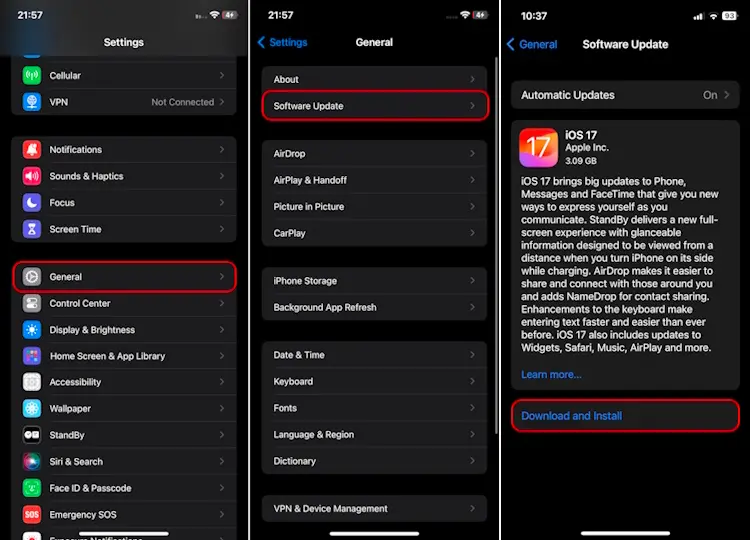
However, not all updates are created equal. A minor security patch might take only 15 minutes, while a major version upgrade—like a major iOS release—could push closer to the 60-minute mark. Factors such as your device model, available storage space, and internet speed play a massive role in the final tally.
Key Factors That Influence Update Speed
Why does your friend’s iPhone update in 20 minutes while yours takes an hour? Several technical bottlenecks can turn a quick update into a waiting game.
1. Internet Connection Speed
The most significant factor during the “download” phase is your Wi-Fi speed. Since iOS updates are often several gigabytes in size, a slow or unstable connection will significantly increase the time spent in the download queue. Always ensure you are connected to a stable, high-speed network rather than relying on cellular data.
2. Device Model and Processor
Newer iPhone models, such as those released in 2025 and 2026, feature faster processors and improved flash storage speeds. These devices can decompress files and write them to the system partition much faster than an older model, such as an iPhone 13 or 14. If you are using a device that is several years old, expect the installation phase to take a bit longer.
![[2025 Real Test] How Long Does it Take to Download iOS 14/15/16/17/18](https://images.ultfone.com/box/box-reiboot.png)
3. Available Storage Space
Your iPhone needs “breathing room” to install an update. If your device is nearly full, the system has to work harder to clear temporary cache files and manage disk space. Freeing up at least 5–10 GB of space before starting an update is a proven way to speed up the installation process.
Preparing Your iPhone for a Seamless Update
Before you tap “Install Now,” taking a few proactive steps can save you from frustration and ensure your data remains safe.
- Perform a Backup: Never skip this step. Use iCloud or a computer backup to save your photos, messages, and app data. If an update fails, you’ll be glad you have a restore point.
- Check Your Battery: Your iPhone requires at least 50% battery life to update, or it must be plugged into a power source. It is highly recommended to keep your phone on the charger throughout the entire process to prevent the device from shutting down mid-update.
- Clear the Cache: Delete unnecessary large videos or unused apps to provide the installation process with the resources it needs to run efficiently.
![How Long Does the iOS 26 Update Take? [Full Guide + Solutions]](https://images.ultfone.com/howtouse/ios-system-repair/ultfone-ios-upgrade.jpg?w=1020&h=620)
Troubleshooting: What If the Update Takes Too Long?
If your iPhone appears to be stuck on the Apple logo or the progress bar hasn’t moved for over an hour, don’t panic. Occasionally, the installation may hang due to a software glitch.
- Wait it out: Sometimes the final stages of the installation take longer than the progress bar suggests. Give it at least 60–90 minutes before intervening.
- Force Restart: If you are certain the device is frozen, a force restart can often resolve the issue. Press and quickly release the volume up button, press and quickly release the volume down button, and then hold the side button until the Apple logo reappears.
- Use a Computer: If over-the-air (OTA) updates are failing, connecting your iPhone to a Mac or PC using iTunes or Finder is a more reliable way to force the update and repair any corrupted system files.
Conclusion: Plan Your Update Wisely
In 2026, keeping your device updated is essential for maintaining security, performance, and compatibility with the latest apps. While you should generally budget 30 to 60 minutes for the process, the best approach is to start your update when you don’t need your phone for a while—such as before you go to bed.
By ensuring you have a stable Wi-Fi connection, sufficient storage, and a reliable power source, you can minimize the time spent in the update queue and get back to enjoying the latest features of your iPhone. Remember, a little patience during the update process goes a long way in keeping your device running smoothly for years to come.